
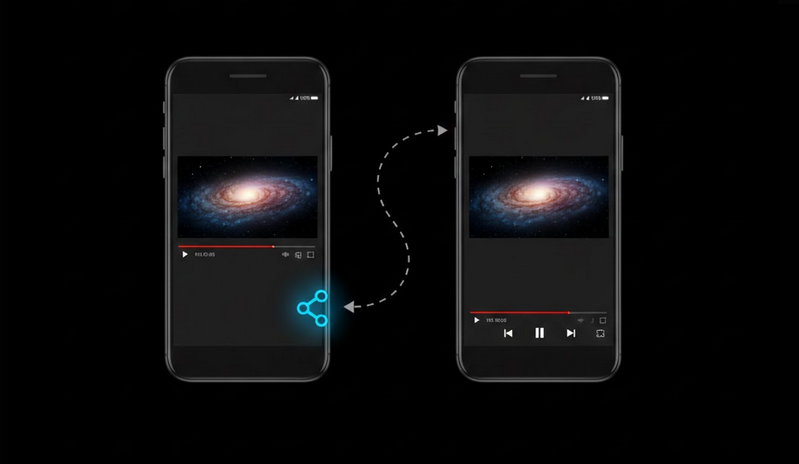
Video sharing is one of the most widespread actions performed by the people on YouTube. No matter what video type you have, whether it is a tutorial or a funny video, the process will be simple. However, there are lots of ads in the videos. This article provides some tips on how to share videos without ads.
Sharing Videos on YouTube
When you share a video, you provide the link to the person who gets it and he or she opens it via the mobile application used or on the YouTube website. The ads and YouTube’s interruptions appear on this user’s screen. The process of sharing doesn’t affect the type of ads seen by this user.
How to Share Timestamp to Skip Introduction
To give your friends the possibility to have a better experience of watching videos, you may skip the introduction by setting the timestamp.
Mobile Application:
- Tap on ‘Share’.
- Then choose ‘Start at’ and set the timestamp.
Desktop:
- Right-click on the video.
- Then tap on ‘Copy video URL at current time.’
Manual way:
- Add ‘?t=XXs’ to the video URL.
- XX is the number of seconds.
Recommendations to Other People Not to See Ads
- Below are some tips on what you can recommend to your friends to allow them to watch YouTube videos without ads.
- YouTube Vanced: recommend to your Android friends to watch videos without ads.
- Browser extensions: suggest using uBlock Origin for desktop users.
- Ad-blocking browsers: suggest Brave browser to watch videos without ads without any additional extensions.
- YouTube premium: those people who are ready to spend money may use YouTube premium which allows to watch videos without ads on all devices.
Sharing Playlists Rather Than Videos
In case you want to share videos with your friends, it is better to create the playlists and then provide the friends with the opportunity to check them out.
Sharing Videos With Specific Start Time and Clips
You can create clips from YouTube videos and then share the link to this clip. You may choose the segment which will be from 5 to 60 seconds and then share the link to the segment of this video.
- Tap on the Clip Icon: this icon is placed below the video and near like, share and save icons.
- Set the boundaries of your clip: with the help of start and end markers.
- Name your clip.
- Share the link: copy the link to the clip created and share it.
Social Media Tips for YouTube Video Sharing
- Add Description: in order to get more views and reactions, add description to the reason why you send the link.
- Add Timestamps: to connect the exact point where the video starts.
- Tag People: tag the people who will be interested in this video.
- Choose the Correct Website: send tutorials to LinkedIn, entertainment to Instagram and music to messengers.
Who Can Use YouTube Video Sharing Tips
- Content curators: people who share videos regularly and want to improve the process for the recipients.
- Educators: teachers who share tutorials and lectures to their students.
- Marketing professionals: people who share videos with branded content.
- Friend groups: people who share entertainment, music and funny videos in group chats.
Conclusion
It seems that video sharing on YouTube is a simple action but you can make it more effective using timestamps, clips and playlists. In addition, you may recommend to your Android friends to use YouTube Vanced so they won’t see ads.
